



PROJECT INSTRUCTIONS


PROJECT INSTRUCTIONS

Computer Basics for the Machine Embroiderer - Part 1 Embroidery Project
By
Bonnie Landsberger
on
July 28, 2016
PROJECT DETAILS
Description
Computer Basics for the Machine Embroiderer - Part 1
Project Preview Video
Embrilliance Essentials - Software Download
$139.00
Circle Price: $134.10

Embrilliance Thumbnailer Software
$39.00
Circle Price: $35.10

Greatest Teacher
$3.89
Circle Price: $3.89


Computer Basics
for the Machine Embroiderer – Part 1
|
 | Shopping for machine embroidery designs on the Internet
can be somewhat frightening if you have never used a computer. Even after you have some experience, software
updates and unexpected changes that occur in operating systems and Internet
browsers can have you scratching your head again. Being a little familiar with the language and
how to manage a few basic tasks can help.
|
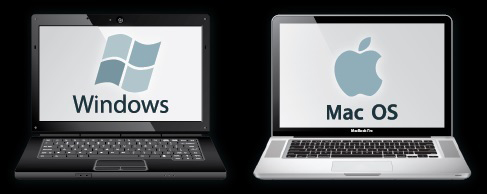 | Operating Systems An operating system (OS) in technical terms is the main software that manages computer hardware and software resources and provides common services for computer programs. Simply said, it runs your computer. You would most likely have a Mac OS or a Windows OS pre-installed, which helps you install the apps and programs of your choice. The OS also opens apps and programs that you have installed, such as embroidery design software that is required to open, view and edit embroidery design files. Whether you have a Mac OS or a Windows OS, you can purchase and download embroidery design files to your computer. All computers will save and store downloaded files. However, the OS will not open files unless an associated program has been installed. If you do not have an embroidery design software program installed, you will not be able to open and view a design on your computer, but the design file can be copied to the device that runs your machine, such as a USB drive, and then the software in your machine will read the file from the USB drive and stitch out the design. |
 | Internet Browser & Downloading Files The Internet browser is the program that allows you to view web pages, shop and download files. Computers come with an Internet browser pre-installed, such as Safari on a Mac. Windows 8.1 and Windows 10 come pre-installed with Microsoft Edge, and earlier versions of Windows are pre-installed with Internet Explorer. You can also install a different Internet browser to one that fits your personal needs better, such as Opera, Google Chrome or Mozilla Firefox. Each browser program has the same purpose, but they also have differences when downloading files. Basically, you click on the download button or link on the download page and some browsers will automatically download and save the file on your computer, while others will ask whether you want to open or save the file. When given the option, it is advised to first save embroidery design files to your computer so that the file will be accessible later without connecting to the Internet. |
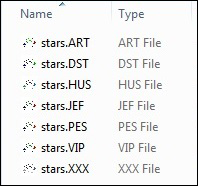 | File Formats Each machine brand requires a specific format which is recognizable by the last three digits after the dot in the filename, also known as the “extension”, as seen in this image that shows one design inside a folder converted to seven different machine formats. If you do not see the extensions at the end of the filename, your computer might be set to hide the file types; and if so, adjust the folder view to “Details” which will reveal the format under the column for “Type”. Some machines have the ability to understand more than one format, but many do not. For example the Tajima machine understands a DST format (written as filename.DST) but a Tajima does not recognize a PES (written as filename.PES) which is native to Baby Lock and Brother machines; whereas, many Husqvarna machines models will understand several formats, including HUS, VIP and VP3. You should download the format that is native to your machine. If you are unsure of which format to download for your machine, you’ll find that information in your machine manual, the manufacturer’s web site or you can also contact our Customer Service at EmbroideryDesigns.com and we can help you determine the correct format. |
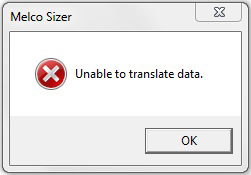 | There are some formats, such as Bernina ART or
Brother/Baby Lock PES that have been created in different versions due to
software upgrades throughout the years.
You may occasionally find a conflict, as seen in this image when trying
to open a more recent PES version 5 in an older program, Melco Sizer, that
doesn’t understand the PES format higher than version 4, or a message similar
such as “Data Missing” or “Corrupt File”. When your machine or software doesn’t understand or recognize a file,
even though it appears to be the correct format, the problem can usually be
resolved by converting the file again to a more compatible version of the
format.
|
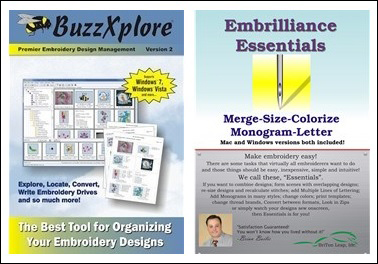 | Conversion The format cannot be converted from one format to another by renaming the filename to end with your preferred format letters. The filename before the dot can be renamed, but changing or eliminating the extension that follows the dot will make the file unreadable. The format can, however, be converted from one machine format to another by opening the design file of any format in an embroidery design software program, such as BuzzExplore or Embrilliance Essentials, and then saving it to the format that you need. |
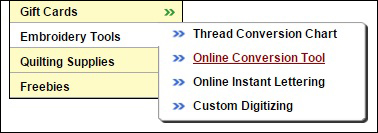 | If you do not have conversion software, you can try using
our Online Conversion Tool found at the left of our Welcome page under
Products, and hover over Embroidery Tools to open the panel of listed
tools. You will also find this tool on
each download page in your Order History by clicking on the “Change Format”
link that sits to the right of each design image. If you have trouble using the tool on the
download page, you’re invited to contact Customer Service at
EmbroideryDesigns.com and we will convert any machine file that we find in your
Order History and email the best version for your machine or software to you. Note, conversion is not the same as digitizing! Although many embroidery programs also open graphics file types, such as JPG or EPS, a graphics file cannot be converted to a machine file. The graphics file is used in a high level embroidery software program to help create a machine file through the digitizing process. |
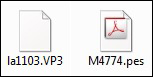 | Recognizing Files You don’t need a software program on your computer in order to run the design on your machine, but you must have an embroidery design software program installed on your computer if you want to open and view an embroidery design file. Without an associated embroidery program installed on your computer, the file icon will likely be displayed as an image of a sheet of paper. As well, the OS might automatically detect that the machine file is a “binary” file type and associate it as one that can be opened with Adobe Reader, which is a common program installed on most computers. An embroidery file opened on Adobe Reader will reveal only the written binary code in text and symbols that appear as gibberish. If you do not have an embroidery design software program installed, simply copy the file to the device that runs the machine, such as a USB drive, and the software inside of your machine will read the file, as long as it’s the correct format and version for that machine. |
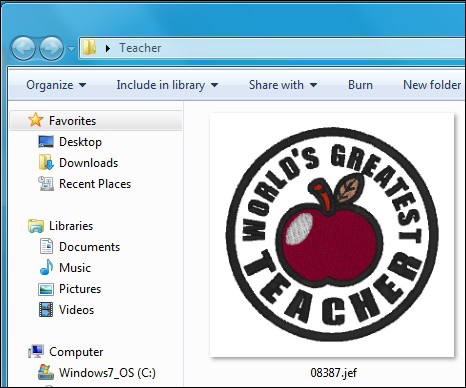 | If you desire to actually see the design when viewing
filenames on the computer, you can install an iconizer like Embrilliance
Thumbnailer (available for both Mac and Windows) that changes the icon of the
filename into a mini image of the actual design. As well, you can rename the file to something
that helps you recognize the design, but again, when renaming do not change the
format extension of the last three digits after the dot or the file will become
unreadable.
|
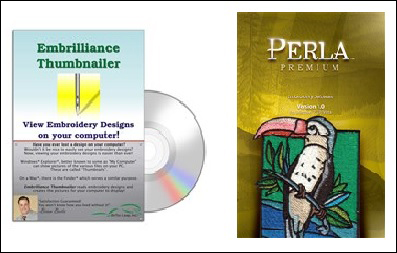 | Programs There are many different types of software programs that can be installed on both Mac and PC operating systems. When shopping for a program, read the specifications and first consider whether the program can be installed on your OS, and if so, consider the tools that are offered in the program and choose the one that suits your personal needs. There are programs that allow the most basic operations of viewing and/or converting formats, and some that help organize and catalog your designs. More sophisticated programs allow editing designs and adding lettering to your designs, and there are programs with higher levels that offer digitizing tools to create your own designs. Determine which program is right for your needs by reviewing the functions of each program and choose the one that offers the tools you know you will use. Continue reading “Computer Basics for the Machine Embroiderer – Part 2” for more computer tips and tasks. |
Projects You May Like
Meet the Author:
Bonnie Landsberger

Bonnie Landsberger has been a crafter and hand embroiderer since childhood and a machine embroiderer and digitizer since 1986. She was the in-house head digitizer for a 50-head embroidery shop for 11 years and later offered custom digitizing services and stock design sales through her web site for Moonlight Design since 1993. She currently also holds a position as a customer service representative at EmbroideryDesigns.com.
Bonnie has won several awards for digitizing, including a gold medal in the 2002 Digitizing Olympics and grand prize in all categories & first place for Winter Holidays category in the Stitches Magazine Great Greeting Card Contest 2003.
Her embroidery and digitizing technical articles can be found in various trade magazines and she is currently a contributing writer and Editorial Advisory Board Member for Stitches Magazine. You can also find more of her articles online at EmbroideryDesigns.com and will continue to contribute articles to our Learning Center.
Feedback
Characters Remaining
Please Login to Submit a Feedback
Invalid Characters, Please enter a valid Comment
Please enter a valid Comment
Reviewed On
Link is Broken, Please check the URL