






PROJECT INSTRUCTIONS


PROJECT INSTRUCTIONS

How To Use Design Search Embroidery Project
By
Bonnie Landsberger
on
March 21, 2016
PROJECT DETAILS
Description
With thousands of designs available on EmbroideryDesigns.com, choosing just the right one for your project can be a difficult decision. We have made your search easier and faster by creating tools that will help you quickly find the perfect design!
Project Preview Video
How To Use "Design Search" With thousands of designs available on EmbroideryDesigns.com, choosing just the right one for your project can be a difficult decision. We have made your search easier and faster by creating tools that will help you quickly find the perfect design! |
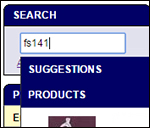
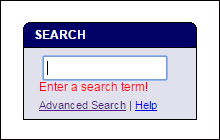 | Design Search Type your keyword into the Design Search box located at the top left of the Welcome page. |
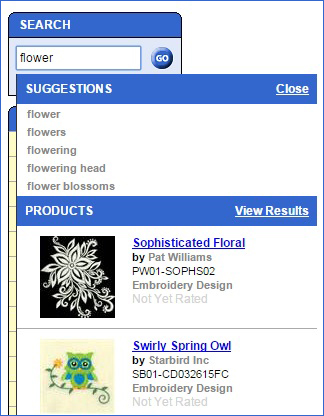 | While you are typing in your keyword, the database
automatically offers suggestions to click on, or you can finish typing your
keyword and click on the GO button at the right of the keyword to bring up the
Products Listings page of related items.
For this example, I typed “flower” into the search field and clicked on
GO.
|
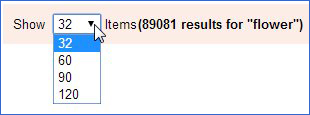 | Adjust View The Products Listings page shows 32 results on the page
by default. You can change the number of items that you see on one page by
clicking on the drop down arrow to the right of “Show: 32”. From this drop down
menu, choose to view 32, 60, 90 or 120 items on one page. |
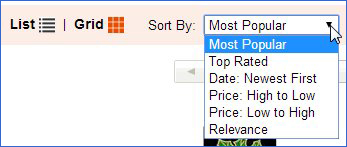 | At the right of the page, you have your choice of viewing
by List or Grid. The page loads with the
Grid View as default. Click on “List” to
see items in a list with the image at the left and details about the item to
the right of the image; although this will show less designs per page, the List
View offers all of the details for one design at one glance, making it
unnecessary to click to a new page for additional details. For more view choices, click on the down
arrow to the right of “Sort by:” |
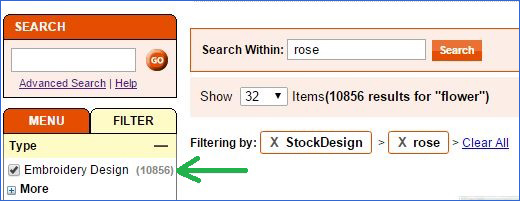 | Narrow Search with Filters With over 10,000 items that appear in the search for “flowers” you may want to narrow the search. At the left of the page in the Filter tab, put a check in the box at the left of “Embroidery Designs”. Type a more specific keyword in to the open field to the right of “Search Within:” and click on Search. I have typed in “rose” for this example. I can change my mind quickly by clicking on the “X rose” button in the “Filtering by:” field and the filter will close, bring back all of the “flower” designs again.I also have the choice to click on the “Clear All” link, which will close all Filters, allowing a new search for all items. |
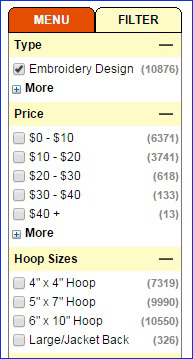 | Also under the Filter tab, when “Embroidery Designs” is
checked, you will see more options to check that will further narrow the
search, including options for “Hoop Sizes”, “Categories”, “Vendors”, “Formats”
and more.
|
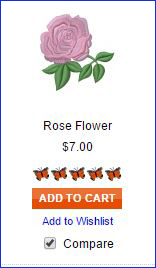 | Compare You might find a few designs that you like, but can't decide which of your favorites will work best for the project. Put a check mark in the box to the right of “Compare” seen below the design image in the Product Listings. |
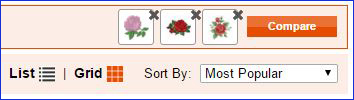 | As you choose each design to compare, they are then listed at the top
right of the page. If you change your mind about one that you have chosen to
compare, click on the black X at the upper right corner of the design to remove
it from the Compare box. After you have the designs
in the Compare box that you are considering, click on the “Compare” button that
sits to the right of the design choices. |
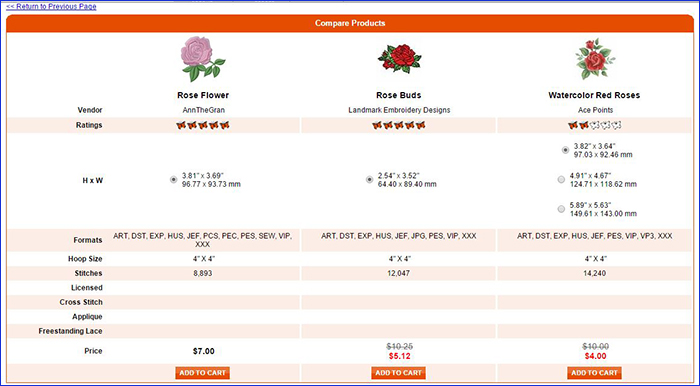 | The Compare Products page
loads, showing all designs you have chosen, along with all the details of each
design. If there are multiple sizes, as
for the Watercolor Red Roses, all sizes will appear in both millimeters and
inches for you to consider. When you are
ready to go back to the Product Listings, click on the link “Return to Previous
Page” at the upper left.
|
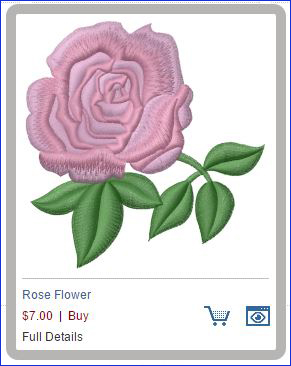 | Quick View & Quick Details When you are on the Product Listings Page that shows the results of the Design Search, hover over a design to bring up the Quick View. This will magnify the image and offers the opportunity to click on the link for Full Details, or you can click on the cart at the lower left to add the design to your shopping cart. Or if you just want a little more information, click on the Quick Details icon that looks like a little eye inside of a box at the lower right corner. |
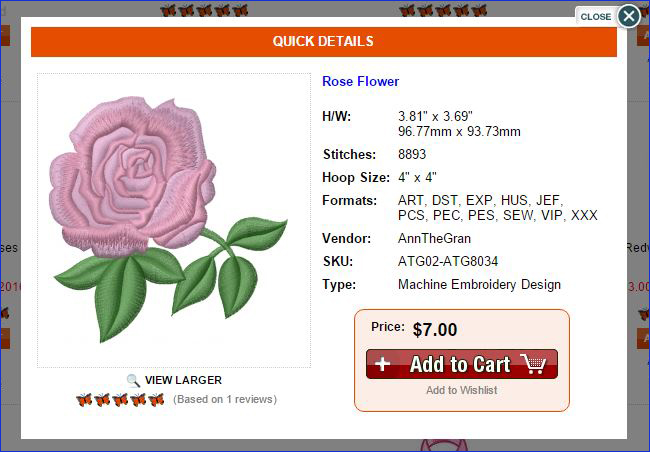 | The Quick Details window shows brief summary about the
design, such as size and formats available, and it offers the opportunity to
Add to Cart or Add to Wishlist. While in
the Quick Details, if you want more information about the design, click on the
title to bring you to the Full Details Product Page where you will find all
details about the design, reviews from customers and design suggestions, as
well as, related products, such as a pack of multiple designs that includes the
same design.
|
Projects You May Like
Meet the Author:
Bonnie Landsberger

Bonnie Landsberger has been a crafter and hand embroiderer since childhood and a machine embroiderer and digitizer since 1986. She was the in-house head digitizer for a 50-head embroidery shop for 11 years and later offered custom digitizing services and stock design sales through her web site for Moonlight Design since 1993. She currently also holds a position as a customer service representative at EmbroideryDesigns.com.
Bonnie has won several awards for digitizing, including a gold medal in the 2002 Digitizing Olympics and grand prize in all categories & first place for Winter Holidays category in the Stitches Magazine Great Greeting Card Contest 2003.
Her embroidery and digitizing technical articles can be found in various trade magazines and she is currently a contributing writer and Editorial Advisory Board Member for Stitches Magazine. You can also find more of her articles online at EmbroideryDesigns.com and will continue to contribute articles to our Learning Center.
Feedback
Characters Remaining
Please Login to Submit a Feedback
Invalid Characters, Please enter a valid Comment
Please enter a valid Comment
Reviewed On
Link is Broken, Please check the URL